Fixing Conversion Drops After Website Redesign (Step-by-Step Guide)
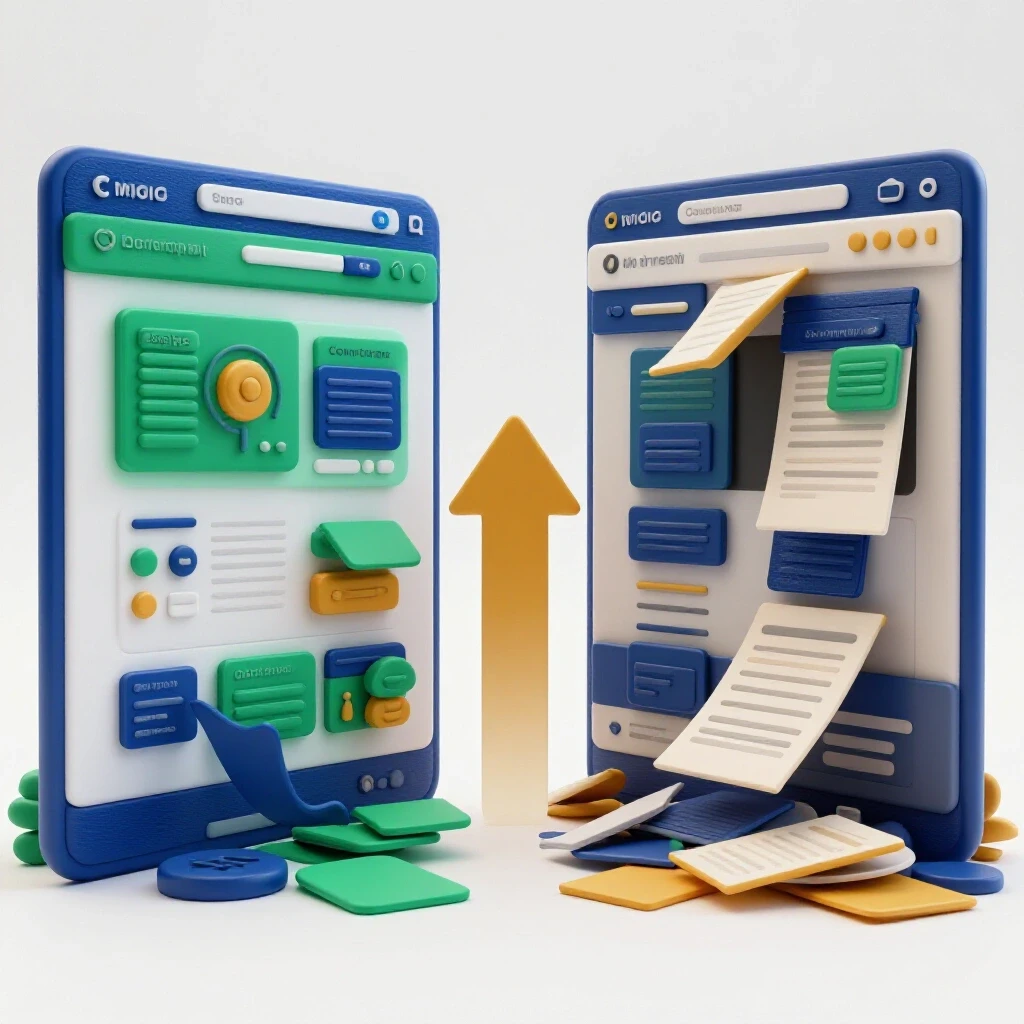
Talking about versatility in the world of technical marketing often means being the person who bridges the gap between a sleek new website design and the messy reality of backend data. I have spent 12 years in the trenches of technical troubleshooting marketing. I have seen how a single line of misplaced code during a site refresh can silence a high-performing ad account. When a site undergoes a visual overhaul, the underlying tracking architecture often shifts, leading to a sudden and sharp decline in reported conversions.
In my experience, these issues are rarely about the ads themselves. Instead, they usually stem from broken data pathways. I recall a specific instance where a client launched a beautiful new checkout flow. Within hours, their dashboard showed a 70% drop in successful leads. The ads were still getting clicks, but the platform had lost sight of the users once they landed. My job was to find where the signal died. This guide walks through the methodical frameworks I use to restore data flow and fix backend attribution issues.
Auditing Pixel Pathways After a Site Update
Auditing pixel pathways involves tracing the digital breadcrumbs left by a user from the initial ad click to the final conversion event. This process ensures that the tracking scripts are not only present on the new site but are also firing in the correct sequence.
When a website is redesigned, the Document Object Model (DOM) often changes. The DOM is essentially the structural map of a webpage. If your conversion pixel was set to fire when a user clicked a button with a specific ID, and that ID changed during the redesign, the pixel will stop working. This is a classic case of conversion pixel debugging. I start by using browser extensions like the Meta Pixel Helper or LinkedIn Insight Tag Checker. These tools show me exactly what the browser sees.
I look for “Event Not Paired” errors or “Invalid Currency Code” warnings. These are signs that the data being sent doesn’t match what the platform expects. During a recent audit, I found that a new “Single Page Application” (SPA) setup was preventing the pixel from seeing page changes. Because the URL didn’t technically “reload,” the pixel thought the user never left the homepage. To fix this, I had to implement virtual pageview triggers within the tag manager.
- Verify Base Code: Ensure the main script is in the
<head>of every page. - Check Trigger Consistency: Confirm that “Add to Cart” or “Lead” buttons still have the correct CSS selectors.
- Monitor Loading Latency: If a pixel takes more than 2 seconds to load, the user might navigate away before the event records.
Identifying Vague Platform Error Messages
Platform error messages are notoriously cryptic, often providing little more than a generic “Data Processing Error.” Deciphering these requires a systematic approach to isolate whether the issue is with the payload, the authentication, or the server connection.
We have all seen the dreaded “Red Triangle” in an ad manager. These messages rarely tell you why something is wrong. They just tell you that the data has stopped. To move past this, I use API payload testers. These tools allow me to see the raw JSON data being sent to the platform. If the “Event Time” is in the wrong format or the “Action Source” is missing, the platform will reject the entire data packet without explaining why.
Building a diagnostic blueprint is essential here. I compare the current data stream against the platform’s official developer documentation. For instance, Meta’s Conversions API (CAPI) requires specific “Server Event Parameters” like client_ip_address and client_user_agent. If the redesign stripped these out to “clean up” the code, your attribution will fail.
| Error Symptom | Potential Root Cause | Diagnostic Step |
|---|---|---|
| Sudden 0% Match Rate | Missing Event ID or External ID | Check deduplication keys in the payload. |
| Delayed Event Reporting | Server-side queueing bottlenecks | Review API feedback loop averages. |
| High Discrepancy (>20%) | Browser-side blockers or script errors | Compare server events vs. browser events. |
| “Invalid Hash” Warnings | Incorrect SHA-256 formatting | Verify PII hashing before transmission. |
Restoring Backend Attribution with Server-Side Fixes
Server-side tracking involves sending conversion data directly from your website’s server to the ad platform’s server. This method is more resilient than browser-based tracking because it isn’t affected by ad blockers, cookie restrictions, or browser crashes.
In the modern privacy landscape, relying solely on the browser-side pixel is a risk. When a redesign happens, it is the perfect time to implement or repair a Conversion API (CAPI) setup. I think of the browser pixel as a postcard sent through the mail; it can get lost or damaged. The API is like a secure, tracked courier service.
To restore proper data flow, I focus on the “Handshake.” This is the moment your server authenticates with the platform using a secure API token. If the redesign involved moving to a new server or updating your security certificates (SSL), that handshake might be failing. I always check the API feedback loop averages. If the platform takes longer than 500ms to acknowledge a hit, there is likely a network timeout issue on the backend.
- Generate a New Access Token: Refresh your API tokens if the hosting environment changed.
- Map Event IDs: Ensure the
event_idsent from the browser matches theevent_idsent from the server for the same action. - Validate Deduplication: If both the pixel and API fire for one purchase, the platform needs to know they are the same event to avoid double-counting.
Resolving Pixel Conversion Drop-Offs through Event Mapping
Event mapping is the process of connecting specific user actions on your website to the “Standard Events” defined by ad platforms. Proper mapping ensures that the machine learning models of the ad accounts understand which users are most valuable.
During a site overhaul, the “Thank You” page URL often changes. If your conversion was tied to a URL contains “success.html” and the new URL is “order-confirmed,” your tracking will break. This is one of the most common reasons for a sudden drop in reported performance. I use a “Tag Manager Optimization” strategy to handle this. Instead of hard-coding URLs, I use data layer variables.
The data layer is a virtual bucket of information that sits behind the scenes of your website. It can hold details like transaction value, product names, and user types. By mapping your tags to the data layer rather than the URL, your tracking becomes “design-proof.” Even if the buttons change color or the URLs change structure, the data layer remains a constant source of truth for your conversion pixel debugging.
- Standardize Naming: Use
Purchaseinstead ofBoughtItemto align with platform defaults. - Value Accuracy: Ensure the currency and value fields are pulling correctly from the new checkout code.
- Match Quality Scores: Aim for an Event Match Quality (EMQ) score of 6.0 or higher. This indicates the platform has enough data (like email or phone) to link the event to a specific user.
Strengthening Ad Account Security Protocols
Ad account security protocols are the safeguards put in place to prevent unauthorized access and ensure data integrity. This includes two-factor authentication, domain verification, and managing developer access to API keys.
A redesign often involves bringing in external contractors or new agencies. This is a high-risk period for account security. I have seen instances where a developer accidentally hard-coded a private API key into a public-facing script. This is a massive security breach that can lead to account bans.
I implement a strict “Least Privilege” model. No one gets “Admin” access unless they absolutely need it. I also ensure that “Domain Verification” is updated. If you move your site to a new domain or even a new sub-domain during the redesign, the ad platform needs to know you still own that digital property. Without this, your “Aggregated Event Measurement” (AEM) will fail, and your ads will stop optimizing for conversions.
- Audit Business Manager Access: Remove any former employees or contractors.
- Rotate API Keys: Treat your CAPI tokens like passwords and change them if they were shared in plain text.
- Enable MFA: Ensure every person with access to the ad account has multi-factor authentication active.
Testing API Connections and Data Integrity
Testing API connections involves sending “test payloads” to a platform’s developer sandbox to ensure the data is formatted correctly before going live. This prevents “dirty data” from polluting your actual ad account metrics.
Before I flip the switch on a new tracking setup, I use a “Sandboxing” technique. Most platforms, like Meta or Google, offer a “Test Events” tool. I can perform a transaction on the new site and watch the data arrive in the dashboard in real-time. I look for a discrepancy tolerance of under 5%. If I see 100 purchases in my website’s backend but only 85 in the ad manager, I know 15% of my data is getting lost.
I also monitor “Pixel Loading Latency.” If the redesign added heavy images or complex scripts, the conversion pixel might load too late. If a user completes a lead form and closes the tab in 0.5 seconds, but the pixel takes 1.0 seconds to fire, that conversion is lost forever. I aim for a script execution time of under 200ms.
- Use Payload Testers: Tools like Postman can help you manually send data to an API to see the response.
- Monitor Feedback Loops: Check the “Diagnostics” tab in your ad account daily for the first week after a redesign.
- Verify Database Matches: Periodically export your website’s sales data and compare it to the ad platform’s reported conversions.
Setting Up Daily Tracking Logs and Automated Alerts
Automated alerts are “watchdog” scripts or platform settings that notify you the moment conversion data deviates from the norm. This allows for rapid response before significant ad spend is wasted on unoptimized campaigns.
The worst way to find out your tracking is broken is by looking at a blank report on a Monday morning. I set up custom alerts in Google Analytics and within the ad platforms themselves. For example, if “Leads” drop by more than 30% compared to the previous day, I get an automated email. This is a core part of API tracking restoration. It allows me to catch issues before they become disasters.
I also maintain a “Technical Change Log.” Every time a script is updated or a new plugin is installed on the site, it gets noted. This makes technical troubleshooting marketing much easier. If conversions drop on Wednesday, I can look at the log and see that a “Caching Plugin” was updated on Tuesday night. This narrows down the search for the bug immediately.
- Set “Zero-Volume” Alerts: Get notified if an event hasn’t fired in 4 hours.
- Monitor Match Rates: Track if the percentage of “Matched Users” drops suddenly.
- Check SSL Health: Ensure your site’s security certificate hasn’t expired, as this blocks many API calls.
Finalizing the Technical Recovery Framework
Restoring data flow after a site update is a marathon, not a sprint. It requires a blend of code-level fixes and high-level strategic auditing. By following a structured framework, you move away from “guessing” why conversions dropped and toward “knowing” how to fix them.
The goal is never 100% accuracy—privacy settings and browser limitations make that impossible. Instead, the goal is a resilient system where data discrepancies stay under 10% and the ad platform has enough “Signal” to keep the machine learning models healthy. When you secure your accounts and verify your API handshakes, you protect the business’s ad spend and ensure long-term growth.
Next steps for specialists: – Perform a “Pixel Audit” using browser developer tools. – Compare your server-side event logs against your ad account dashboard. – Update your domain verification and security settings in the Business Manager. – Set up an automated alert for any significant drop in event volume.
FAQ: Technical Troubleshooting for Post-Redesign Conversion Issues
Why did my conversion tracking stop working after we changed our website’s theme?
When you change a theme, the underlying HTML structure and element IDs often change. If your tracking triggers were based on specific button IDs or CSS classes that no longer exist, the pixel will not fire. You must update your tag manager triggers to match the new design’s code.
What is the difference between browser-side and server-side tracking?
Browser-side tracking (the pixel) happens in the user’s web browser. It is easy to set up but can be blocked by ad blockers or “Do Not Track” settings. Server-side tracking (CAPI) happens on your website’s server. It sends data directly to the ad platform, making it more reliable and less affected by browser-level privacy tools.
How do I fix a “Missing Event ID” error in my ad account?
This error usually occurs when you are using both a pixel and an API but haven’t provided a unique identifier to link the two. To fix this, ensure your backend generates a unique event_id for every action and sends that same ID through both the browser script and the server-side API call.
What is a “good” Event Match Quality (EMQ) score?
An EMQ score of 6.0 to 10.0 is generally considered good. This score reflects how much “customer information” (like hashed email, city, or zip code) you are sending with the event. The more data you provide, the better the platform can match the event to a specific user who saw your ad.
Why are my conversion numbers in the ad manager different from my internal database?
A 5-10% discrepancy is normal due to ad blockers, users opting out of tracking, or browser timeouts. However, if the difference is larger, it likely points to a technical issue like duplicate firing tags, incorrect currency settings, or a failure in your server-side API handshake.
How can I test my tracking without spending money on ads?
Most ad platforms provide a “Test Events” or “Real-Time Monitoring” tool in their developer section. You can use these tools to perform actions on your site and see if the events appear in the platform’s dashboard instantly. You can also use “Debug Mode” in your tag manager.
What is CNAME cloaking, and does it help with tracking?
CNAME cloaking is a technique where you set up a subdomain (like track.yourwebsite.com) that points to a tracking server. This makes the tracking scripts appear as “first-party” data rather than “third-party” data, which can help bypass some basic ad blockers and improve data retention.
How often should I rotate my API access tokens?
While there is no strict rule, it is a best practice to rotate your API tokens every 90 days or whenever a technical team member with access to the tokens leaves the company. This ensures that your backend attribution fixes remain secure.
What is the “Data Layer,” and why is it important for specialists?
The Data Layer is a JavaScript object used by tag managers to pass information from your website to your tracking tags. It acts as a stable middleman. Instead of the tag looking at the “visual” part of the site (which changes during a redesign), it looks at the Data Layer, which remains consistent.
Why is domain verification required for social media ads?
Domain verification proves that you are the legitimate owner of a website. It is a security protocol that allows you to configure “Aggregated Event Measurement.” Without it, platforms like Meta cannot accurately track or optimize for conversions from users on iOS 14.5 or later.
What should I do if my ad account is banned after a technical update?
First, check your “Account Quality” dashboard to see the reason. Often, sudden changes in tracking behavior or security settings can trigger an automated “suspicious activity” flag. Appeal the ban by providing documentation of the redesign and the technical steps you took to ensure data privacy and security.
How can I reduce pixel loading latency?
To reduce latency, use a tag manager to load scripts “asynchronously,” which means they won’t stop the rest of the page from loading. Also, minimize the number of redundant tags and ensure your server-side API calls are queued so they don’t slow down the user’s checkout experience.
(This article was written by one of our staff writers, William Prescott. Visit our Meet the Team page to learn more about the author and their expertise.)