How to Fix UTM Tagging Mistakes That Impact Social Ad Reporting (Guide)
Have you ever refreshed your analytics dashboard only to see a massive spike in “Direct” traffic right as your biggest social ad campaign went live? It is a sinking feeling that every technical specialist knows. You see the ad spend disappearing in real-time, but the conversions are not being credited to the right source. In my 12 years of diagnosing platform errors, I have learned that the smallest character in a URL can be the difference between a successful launch and a reporting nightmare.
Auditing the Source of Data Discrepancies in Social Campaigns
This process involves identifying why platform data does not match your backend analytics due to tagging inconsistencies. It requires a deep dive into how URLs are constructed and how they are read by tracking scripts.
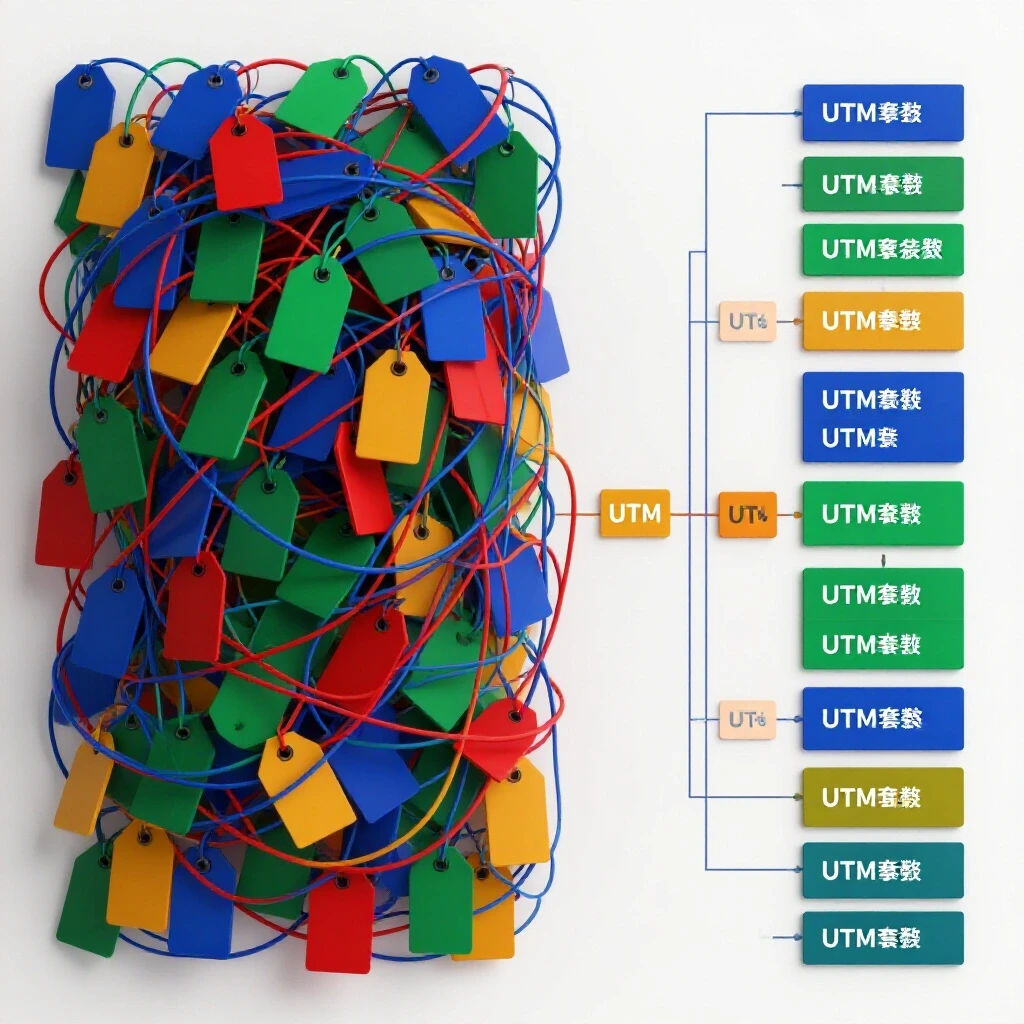
When I first started in technical troubleshooting marketing, I assumed that if a link worked, the tracking worked. I was wrong. A link can lead a user to the right page but fail to pass the necessary data to your analytics tools. This happens because of parameter fragmentation. For example, if one team uses “Social” as a medium and another uses “social” with a lowercase letter, most analytics platforms will treat these as two completely different categories.
During a major product launch for a high-growth brand, I noticed that our reported Return on Ad Spend (ROAS) was dropping daily. On the social platform side, everything looked perfect. On the backend, however, the revenue was being attributed to “Unassigned” sources. I spent hours tracing the data path and found that a simple syntax error in the tracking string was stripping the campaign name before the data hit the server. This is why a methodical audit is the first step in any recovery plan.
- Check for Case Sensitivity: Ensure all tags use lowercase letters consistently.
- Verify Parameter Order: Some legacy systems struggle if parameters are not in a specific sequence.
- Look for Redirects: If your social ad points to a link that redirects, the tracking parameters are often dropped during the transition.
Why Vague Platform Error Messages Block Ad Spend—And How to Formulate a Real Diagnostic Blueprint
Vague error messages often mask specific syntax issues that prevent ads from running or tracking correctly. A diagnostic blueprint helps you move past generic warnings to find the root cause of a tracking failure.
We have all seen the “Invalid Destination URL” error. It tells you nothing about what is actually wrong. Is the page down? Is the tracking code broken? Or is there a hidden character in your URL string? In my experience, these errors are often caused by “illegal” characters like spaces or double question marks in the URL structure.
I once managed a case where an entire ad account was flagged for “malicious software” because of a malformed tracking string. The platform’s automated system misread a complex UTM string as a script injection attempt. To fix this, I had to strip the URL back to its base and add parameters one by one until the error reappeared. This is the essence of technical troubleshooting marketing: isolating variables until the culprit is found.
| Error Message | Likely Technical Cause | Immediate Action |
|---|---|---|
| Invalid Destination | Double question marks in the URL | Check for redundant parameter separators |
| Missing Event Data | Pixel not firing on the landing page | Use a browser debugger to check event triggers |
| Source Mismatch | Case sensitivity in UTM parameters | Standardize all tags to lowercase |
| 404 Not Found | Redirect stripping the tracking string | Ensure the redirect preserves all URL queries |
Building a Technical Troubleshooting Marketing Framework for Tagging
A tracking framework is a systematic approach to verifying URL parameters before, during, and after a campaign launch. It creates a “source of truth” for how data should flow from the ad to the database.
To avoid the chaos of broken attribution, you need a protocol. I call this the “Trace and Verify” method. Before any ad goes live, I test the URL in a “sandbox” environment. This means clicking the link and watching the real-time reports in the analytics dashboard. If I do not see my visit appear with the correct campaign name within 60 seconds, the link does not go live.
In one instance, a client’s tag manager optimization was actually hurting them. They had a script that cleaned up URLs for aesthetic reasons, but it was removing the very parameters we needed for backend attribution fixes. By establishing a framework that required a “live test” for every new ad set, we caught this issue before it ruined a month’s worth of data.
- Define Naming Conventions: Create a strict guide for source, medium, and campaign names.
- Use a Tagging Template: Never type tags manually; use a generator to ensure consistency.
- Test the Full Path: Always check how the URL looks after it has been clicked inside the social app, not just in a desktop browser.
Conversion Pixel Debugging and the Role of URL Parameters
Pixel debugging ensures that conversion events fire correctly when specific tracking parameters are present. It bridges the gap between a user clicking an ad and completing a purchase.
A pixel is a small piece of code on your website that “talks” to the social platform. When a user arrives via a tracked link, the pixel looks for those parameters to understand which ad to credit. If your tracking string is broken, the pixel might still fire, but it won’t know which campaign the user came from. This leads to “Last-Click” attribution gaps where you know you made a sale, but you don’t know which ad caused it.
I remember a project where we had a 15% discrepancy between the social platform’s reported leads and our CRM. After performing conversion pixel debugging, I found that the pixel was loading too slowly. By the time it looked for the tracking parameters, the user had already moved to the next page. We had to move the pixel higher in the site’s header and simplify the URL structure to speed up the “handshake” between the browser and the platform.
- Event Match Quality Scores: Aim for a score of 6.0 or higher in your platform’s diagnostic tools.
- Loading Latency: The tracking script should fire within 200ms of the page load.
- Data Discrepancy Tolerance: Keep the difference between platform data and backend data under 5–10%.
API Tracking Restoration After Attribution Failures
Restoring API tracking involves re-syncing server-side events with browser data when tracking strings are malformed. This is essential in a “privacy-first” world where browser cookies are less reliable.
Modern tracking uses a Conversions API (CAPI). This is a server-to-server connection. While browser pixels can be blocked by ad blockers, CAPI sends data directly from your server to the social platform. However, for this to work, the server needs to “see” the tracking parameters in the URL. If your campaign link is malformed, the server gets confused, and the API tracking restoration becomes a manual, technical headache.
Interestingly, I once saw a case where a server-side update accidentally stripped all query parameters to save on processing power. The marketing team thought their ads were failing, but in reality, the data was just being “blinded” at the server level. We had to reconfigure the API handshake to prioritize the retention of tracking strings.
Ad Account Security Protocols for Tracking Infrastructure
Security protocols protect your tracking setup from unauthorized changes. This ensures that your data remains accurate and your account remains in good standing.
Tracking isn’t just about data; it’s about security. If an unauthorized user gains access to your tag manager, they can change your tracking links to redirect to a different site. This is why ad account security protocols are vital. I always advocate for a “least privilege” model. Only the lead technical specialist should have the power to publish changes to the tracking setup.
In one security audit I performed, I found that an old API token was still active for a developer who had left the company two years prior. That token had the power to change the conversion tracking settings. We immediately revoked the token and established a 90-day rotation policy for all API keys.
- Multi-Factor Authentication (MFA): Require MFA for every user with access to the ad account or tag manager.
- Audit Logs: Review who made changes to your tracking URLs at least once a week.
- Sandbox Testing: Never push a new tracking script directly to a live site without testing it in a safe environment first.
Backend Attribution Fixes for Long-Term Data Health
Long-term data health requires permanent solutions to prevent reporting gaps. This involves moving away from manual entry and toward automated, verified systems.
The most common “rookie mistake” I see is relying on manual UTM entry for every single ad. Humans make mistakes. We forget a hyphen, we capitalize a letter, or we misspell a campaign name. To achieve proper backend attribution fixes, you should use the dynamic tagging features offered by social platforms. These automatically pull the campaign ID and ad name into the URL, reducing the chance of human error.
Building on this, you should also monitor your “Event Match Quality.” This is a metric that tells you how well the data you send matches the users on the social platform. If your parameters are broken, your match quality will plummet. I aim for a discrepancy tolerance of no more than 5%. If the gap grows larger, I know it is time to audit the URL strings again.
- Use Dynamic Parameters: Use tags like
{{ad.name}}instead of typing the name manually. - Monitor API Feedback Loops: Check your server logs daily for any 400-level errors in your data transmissions.
- Standardize Internal Reports: Ensure your data science team and your marketing team are looking at the same filtered view of the data.
Practical Steps to Restore Proper Data Attribution
When you realize your reporting is ruined, you need a fast, effective way to fix it. This is not about pointing fingers; it is about restoring the flow of data so you can make informed decisions.
First, pause any ads that are using the broken links. It is better to stop spending than to spend blindly. Second, identify the exact point of failure. Is it the URL itself, the redirect, or the pixel? Use a “Payload Tester” to see what data is actually being sent to the social platform when a link is clicked.
In a recent case, I found that a mobile app’s in-app browser was stripping parameters that the desktop browser was keeping. This meant half of our traffic was untracked. We had to implement a backend script that captured the parameters and stored them in a first-party cookie as soon as the user landed, ensuring the data survived the entire session.
- Isolate the Error: Test the link on different devices and browsers.
- Patch the URL: Update the ad templates with the corrected tracking string.
- Verify the Fix: Check the real-time analytics to ensure the “Direct” traffic spike has subsided and the “Social” source is growing.
Frequently Asked Questions
What are UTM parameters and why do they break my reports? UTM parameters are tags added to the end of a URL to track the source of web traffic. They break reports when they are inconsistent, misspelled, or stripped by website redirects. This causes traffic to be categorized as “Direct” or “Unassigned” instead of being credited to your social ads.
How can I tell if my tracking is broken before I spend my budget? Always perform a “live click test.” Click your ad’s preview link and use a browser extension to verify that the parameters are present in the final landing page URL. Then, check your analytics platform’s real-time report to see if your visit is correctly attributed.
What is the difference between browser-side and server-side tracking? Browser-side tracking uses a pixel (JavaScript) in the user’s browser. Server-side tracking (CAPI) sends data directly from your website’s server to the ad platform. Server-side is more reliable because it is not affected by ad blockers or browser privacy settings.
Why does my analytics show “Direct” traffic when I am running social ads? This usually happens because the tracking parameters were stripped. Common causes include URL redirects, “clean” URL scripts that remove tags, or links that point to an insecure “http” page instead of “https,” which can drop the referrer data.
What is a “discrepancy tolerance” in tracking? It is the acceptable difference between what your social platform reports and what your backend analytics show. A healthy tolerance is usually between 5% and 10%. If the gap is wider, it indicates a technical issue with your tracking setup.
Can a malformed URL lead to an ad account ban? Yes. If a malformed URL causes too many redirects or triggers a platform’s security filters (by looking like a malicious script), the automated system may flag your account. Keeping your tracking strings clean and standardized is a key part of ad account security protocols.
What is Event Match Quality (EMQ)? EMQ is a score used by platforms like Meta to measure how effective your conversion data is at identifying specific users. High-quality tracking parameters and consistent server-side data help improve this score, leading to better ad targeting and lower costs.
How do I fix “Unassigned” traffic in GA4? “Unassigned” traffic occurs when the source/medium parameters do not match the platform’s predefined categories. To fix this, ensure your tags follow the standard naming conventions (e.g., use “social” for the medium) and avoid custom names that the system does not recognize.
Do I need a developer to fix my UTM errors? While many errors can be fixed by a technical social media specialist using a tag manager, some issues—like server-side stripping or complex redirects—may require a developer to adjust the site’s backend code or server configuration.
What is the best tool for debugging tracking pixels? The best tools are the official browser extensions provided by the social platforms (like the Meta Pixel Helper) and the “Network” tab in your browser’s developer tools, which allows you to see the actual data payloads being sent.
(This article was written by one of our staff writers, William Prescott. Visit our Meet the Team page to learn more about the author and their expertise.)